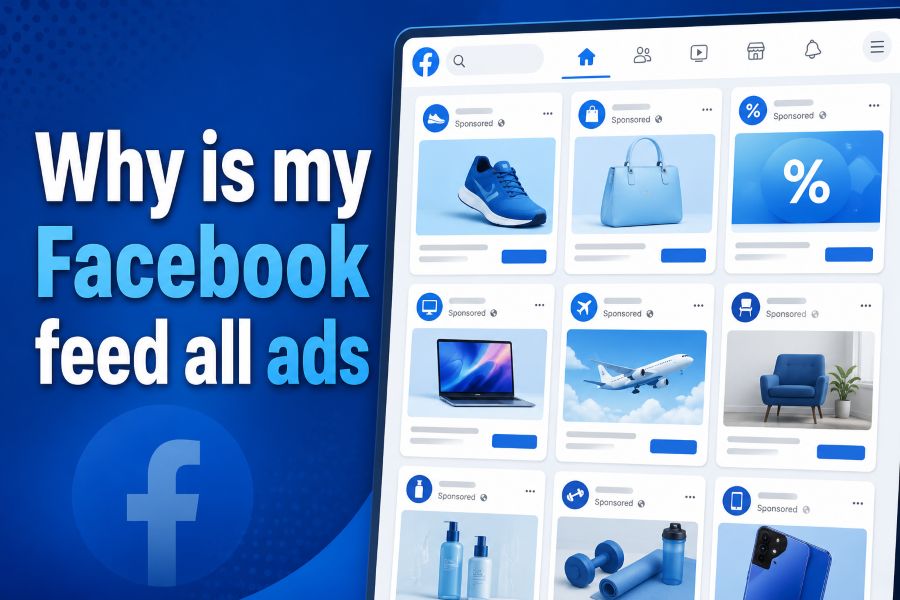
You open Facebook hoping to see a family update, a friend’s photo, or a post from a group you follow. Instead, the Feed appears to be filled with sponsored products, recommended videos, unfamiliar Pages, and promotional content. After scrolling for a few minutes, it is natural to ask, “Why is my Facebook feed all ads?”
Your Feed probably is not literally composed only of advertisements. The problem is that several types of content can feel promotional. Actual Facebook ads display a “Sponsored” label, while suggested posts come from accounts you do not follow and are not paid advertisements. You may also see promotional posts from Pages you intentionally followed.
Ads can feel even more dominant when fewer friends or followed Pages are posting, when you have unfollowed many accounts, or when Facebook’s ranked Feed shows less of the content you value. Long scrolling sessions also give you more chances to encounter repeated ad placements and recommendations.
Facebook provides controls for hiding individual ads, reviewing why an advertisement appeared, managing advertisers, shaping suggested content, prioritizing friends, and viewing recent posts. However, standard Ad Preferences mainly affect ad relevance and personalization. Meta states that changing these preferences does not generally reduce the total number of ads displayed.
This guide explains what you are seeing and how to make your Facebook experience more relevant without promising that every advertisement will disappear.
Direct answer: Why does my Facebook feed seem to contain so many ads, and what can I do to improve the content and advertising experience?
Facebook may feel ad-heavy because your Feed contains sponsored ads, suggested posts, followed Page promotions, and fewer relevant updates from friends. You can improve the experience by hiding irrelevant ads, reviewing Ad Preferences, using Content Preferences and Favorites, reconnecting with wanted accounts, and viewing recent posts through the Feeds tab.
Why Is My Facebook Feed All Ads?
Facebook uses advertising as part of its business model, so sponsored posts appear throughout the standard Feed. However, many users count every unfamiliar or promotional-looking item as an ad, even when some of those items are recommendations rather than paid placements.
A genuine advertisement normally includes the word Sponsored. Suggested content may include videos, photos, or articles from Pages and groups you do not already follow, but Meta says those recommendations are not paid for.
The difference matters because the controls are not the same. Ad Preferences affect advertising, while Feed and Content Preferences shape organic posts and recommendations.
| Feed item | How to identify it | What you can do |
|---|---|---|
| Sponsored ad | Displays “Sponsored” | Hide it, report it, or review why it appeared |
| Suggested post | Recommendation from an account you do not follow | Select Not interested or hide the post |
| Followed content | Posted by a friend, Page, or group you follow | Favorite, snooze, unfollow, or reconnect |
| Page promotion | Promotional organic post from a followed Page | Unfollow or adjust your Feed preferences |
Another reason the Feed may feel ad-heavy is that the amount of wanted organic content has fallen. Perhaps some friends post less frequently, you previously unfollowed them, or the standard ranked Feed is not placing their updates near the top.
A useful way to think about this is:
Perceived ad density = Ads seen ÷ Relevant organic posts seen
This is not an official Facebook formula. It simply shows why five advertisements can feel overwhelming when they appear between only a few posts you care about.
Facebook’s default Feed uses ranking to decide which posts may be most relevant. The separate Feeds tab shows more recent posts from followed people, Favorites, Pages, and groups, with the newest content appearing first.
Repeated advertisers may appear because you fit the audience the advertiser chose, the delivery system considers the ad relevant, or the campaign continues reaching people within that audience. A sudden change can also result from an app update, a shift in the accounts you follow, or a temporary display problem.
How Facebook Decides Which Ads to Show You
Facebook does not randomly select every ad. Its systems consider advertiser choices and information that may indicate which audience and content are relevant.
Your Activity on Facebook
Your interactions can influence advertising and Feed recommendations. Examples include the Pages you follow, posts you engage with, ads you click, and topics associated with your activity.
Meta says Ad Preferences may be based on information such as profile details, actions taken on Facebook, and activity involving websites or apps outside Facebook. Changing those preferences can influence the advertisements you receive, but does not generally change the total number.
This does not mean that every click permanently defines your interests. It means your activity can contribute to a broader set of signals used to select content and advertising.
Advertiser Audience Selections
Advertisers can choose audiences based on factors available through Meta’s advertising tools. The exact criteria depend on the campaign, available options, region, and applicable restrictions.
Two people may therefore see different advertisements while viewing the same Facebook Page or group. One may match the advertiser’s selected audience, while the other may not.
Activity From Websites, Apps, and Businesses
Businesses may send Meta information about activity involving their websites, apps, stores, or other interactions. Meta provides an Activity from other businesses setting that lets users control whether that information can be used to show more relevant ads and content.
Some accounts may still display older wording such as Your activity off Meta technologies, because Meta has been transitioning these controls to the updated setting. Menu names can vary by region, app version, and account.
Changing this setting can affect how information from other businesses is used. It does not guarantee that you will see fewer advertisements.
Personalized and Less-Personalized Ads
In regions and accounts where the option is available, Meta may allow users to choose between personalized and less-personalized advertising. Less personalization does not mean an ad-free Feed; it changes the information used to select advertisements.
Why the Same Advertisements Keep Appearing
An advertisement may repeat because the campaign is still active, the advertiser continues targeting an audience that includes you, or there are a limited number of suitable ads available during your browsing session.
Hiding the advertiser is more useful than repeatedly scrolling past the same content, although another advertiser may eventually take its place.
How to Reduce Irrelevant Ads and Improve Your Facebook Feed
The following steps will not remove every Facebook advertisement, but they can improve both the ads and the posts surrounding them.
Menu wording may differ slightly between Facebook on Android, iPhone, Facebook Lite, mobile browsers, and desktop.
1. Open “Why Am I Seeing This Ad?”
When an irrelevant or repetitive advertisement appears:
- Select the three-dot Options menu near the top of the ad.
- Choose Why am I seeing this ad?
- Review the factors Facebook says may have influenced the placement.
- Follow any available link to adjust related preferences.
Meta says this explanation may include factors such as visiting the advertiser’s website or topics prioritized based on your activity.
This option helps you understand the ad. It does not disclose every internal delivery factor.
2. Hide an Individual Advertisement
Open the advertisement’s Options menu and choose Hide ad when available.
This tells Facebook that the particular advertisement is not useful to you. It may improve relevance, but it does not remove all sponsored posts.
3. Hide Ads From a Specific Advertiser
Go to:
Settings & privacy → Settings → Accounts Center → Ad Preferences
Under the advertising customization area, review advertisers you have recently seen. You may be able to select an advertiser and hide its ads. Meta notes that Ad Preferences may not appear in Accounts Center for every user, in which case updating the app or using Accounts Center in a browser may help.
4. Report Misleading or Inappropriate Ads
Use Report ad when an advertisement appears fraudulent, dangerous, impersonates a business, or may violate Facebook’s rules.
Do not report an advertisement merely because it is uninteresting. Use Hide for irrelevant content and Report when you believe there is an actual policy or safety concern.
5. Review Ad Preferences
Inside Accounts Center → Ad Preferences, review available controls for:
- Advertisers you have seen
- Advertising topics
- Information used for advertising
- Activity from other businesses
- Social interactions used with ads
- Personalized or less-personalized advertising, where available
Facebook also allows some users to request fewer ads involving selected sensitive or unwanted topics. Meta lists examples such as alcohol, parenting, pets, and social or political issues, although available categories may vary.
Remember: these controls influence the type or relevance of advertising more than the total quantity.
6. Review Activity From Other Businesses
In Accounts Center, look under Your information and permissions for Activity from other businesses or the older Activity off Meta technologies label.
Depending on your account, you may be able to review recent activity and control how information sent by businesses is connected to your ad and content experience.
Do not expect this setting to erase every reference to past browsing or stop all Facebook ads. It changes how certain off-Meta activity is used.
7. Use Interested and Not Interested
When Facebook suggests an irrelevant organic post:
- Open the post’s Options menu.
- Select Not interested, Hide post, or a similar option.
- Use Interested on content you want to see more often when that option appears.
Meta’s Feed controls include Interested, Not interested, hiding posts, and seeing fewer posts from particular sources.
Suggested-post controls shape recommendations. They are separate from Ad Preferences.
8. Add Important Friends and Pages to Favorites
Favorites can prioritize posts from selected friends and Pages in your main Feed. Meta currently allows users to add up to 30 friends and Pages, and those accounts are not notified when you add or remove them.
Use Favorites for the people and Pages whose updates you genuinely do not want to miss.
9. Use the Feeds Tab
The standard Home Feed is ranked. The Feeds tab provides recent posts from the people, Pages, groups, and Favorites you follow.
This does not necessarily remove all advertisements, but it can make it easier to find newer followed content instead of relying entirely on the ranked Home Feed.
10. Unfollow, Snooze, or Reconnect
Use Unfollow when you want to remain connected to someone but stop seeing their posts. Use Snooze for a temporary break; Meta describes Snooze as hiding a person, Page, or group for 30 days.
To restore wanted accounts, go to:
Settings & privacy → Settings → Feed → Reconnect
Facebook’s Feed controls allow users to manage followed accounts and reconnect with people, Pages, or groups they previously unfollowed.
Why Hiding Ads May Not Reduce the Total Number
Hiding an advertisement tells Facebook that you do not want to see that ad. Hiding an advertiser tells the system not to show you ads from that business when the control is available.
Neither action necessarily changes how many sponsored placements Facebook puts into your Feed.
Meta explicitly states that changing Ad Preferences influences the ads you see but does not change the total number.
That creates an important distinction:
- Ad quantity: How many sponsored placements appear
- Ad relevance: Whether those placements match your interests
- Feed quality: How useful the organic content between ads feels
You may improve relevance without reducing quantity. You may also improve the overall experience by increasing the amount of wanted content through Favorites, Feeds, Reconnect, and intentional engagement.
Suggested posts can still make the Feed feel commercial even after you hide several advertisements. Meta confirms that suggested content is not paid, but unfamiliar recommendations can resemble sponsored posts when they feature products, creators, or promotional language.
Meta offers a subscription without ads only in eligible regions. Its official Help Center currently says the option is available in the European Region and the United Kingdom.
Outside supported regions, standard Facebook settings do not provide a universal switch that removes every ad.
Browser privacy controls may limit some tracking, but aggressive ad-blocking tools can cause missing buttons, broken layouts, login problems, or other site issues. Avoid modified Facebook apps, unknown extensions, or any tool that asks for your Facebook password.
Use the RESET Framework to Clean Up Your Facebook Feed
The RESET Facebook Feed Framework separates advertising controls from organic Feed controls.
R — Review Why Each Ad Is Being Shown
Open one repeated ad and select Why am I seeing this ad? Check whether the explanation relates to an advertiser interaction, website activity, a topic, or other available factor.
Do not assume every unfamiliar post is an advertisement. Confirm whether it says Sponsored.
E — Edit Ad Preferences
Review advertisers, ad topics, personalization settings, and Activity from other businesses.
Hide repetitive advertisers and report genuinely misleading advertisements.
S — Shape the Feed With Content Preferences
Mark unwanted recommendations as Not interested. Unfollow or snooze noisy Pages and groups. Reconnect with friends whose updates you miss.
These actions affect organic content, not the total volume of advertising.
E — Engage With Content You Actually Want
React to, comment on, save, and meaningfully view posts that interest you. Avoid repeatedly opening unwanted recommendations out of curiosity, since that behavior may not communicate the preference you intend.
Use Favorites for your most important friends and Pages.
T — Test Different Feed Views
Use the standard Home Feed and the Feeds tab over several browsing sessions. Do not expect one setting change to rebuild the experience immediately.
Practical Example
Suppose someone sees repeated fitness advertisements but very few updates from relatives.
They open Why am I seeing this ad?, hide repetitive advertisers, and review Activity from other businesses. They then add close relatives to Favorites, reconnect with previously unfollowed friends, mark unrelated suggestions as Not interested, and use the Feeds tab.
The number of sponsored placements may remain similar, but the content between those ads can become more relevant. That improvement reduces perceived ad density even without eliminating advertising.
Facebook Feed Troubleshooting Checklist
- Confirm which posts actually display Sponsored.
- Separate suggested posts from paid advertising.
- Open Why am I seeing this ad? on repeated ads.
- Hide irrelevant advertisements or advertisers.
- Report suspicious or misleading ads.
- Review Ad Preferences.
- Review Activity from other businesses.
- Review Content and Feed Preferences.
- Add important friends and Pages to Favorites.
- Reconnect with accounts you want to see.
- Unfollow or snooze irrelevant sources.
- Test the Feeds tab.
- Update the Facebook app.
- Refresh the page or clear browser cache if the display appears broken.
- Report a technical problem if abnormal Feed behavior continues.
Meta’s troubleshooting guidance recommends steps such as refreshing, reopening the page, clearing browser cache, and trying another browser when Facebook is not working properly.
Conclusion
When you wonder, “Why is my Facebook feed all ads?”, begin by checking what the posts actually are. Sponsored advertisements, suggested content, Page promotions, and normal followed posts use different labels and controls.
You cannot usually stop all Facebook ads through standard settings. Ad Preferences can help make ads more relevant, hide particular advertisers, and adjust some personalization signals, but Meta says those changes do not normally reduce the total number of advertisements.
The most practical approach is to improve both sides of the Feed. Review one unwanted ad through Why am I seeing this ad?, then check Ad Preferences and Activity from other businesses. Separately, use Content Preferences, Not interested, Favorites, Reconnect, and the Feeds tab to increase the amount of content you value.
Start with one browsing session. Hide clearly irrelevant ads, add several important people to Favorites, reconnect with anyone you miss, and view the Feeds tab. The realistic goal is not a magically ad-free Facebook Feed—it is a Feed where the advertising and surrounding content feel less repetitive and more relevant.
Frequently Asked Questions
Can I completely stop Facebook ads?
Standard Facebook settings do not normally remove every advertisement. You can hide individual ads, block ads from certain advertisers, and adjust personalization. A no-ads subscription is currently limited to eligible accounts in the European Region and United Kingdom.
Why am I seeing ads for websites I recently visited?
Some businesses send Meta information about interactions involving their websites, apps, or offline activity. Facebook may use that information for relevant advertising depending on your settings. Review Activity from other businesses in Accounts Center to manage this use.
Why do Facebook ads keep repeating?
The advertiser may still be running the campaign, you may remain within its selected audience, or Facebook may have a limited pool of suitable ads during that session. Hide the advertiser through Ad Preferences when the option is available.
Are suggested Facebook posts advertisements?
Not necessarily. Meta says suggested posts can come from Pages and groups you do not follow and are not paid placements. Look for the Sponsored label to identify an actual Facebook advertisement.
How can I see more posts from friends on Facebook?
Add important friends to Favorites, reconnect with people you previously unfollowed, interact with posts you value, and use the Feeds tab to view more recent followed content. Facebook allows up to 30 friends and Pages in Favorites.
Why did my Facebook Feed suddenly change?
A change may come from Feed ranking, new recommendations, changes to followed accounts, app updates, or a temporary technical issue. Update the app, review Feed preferences, test the Feeds tab, and use Facebook’s technical troubleshooting options if the behavior appears abnormal.